The File Uploads add-on needs to be installed and activated to see the features mentioned in this documentation.
- Adding and configuring a File Upload option for your users
- Attaching an uploaded file to an email
- Saving uploaded files to Dropbox, Google Drive, or Amazon S3
- File Uploads General Settings
- Advanced functionality
Adding a File Upload option to your form
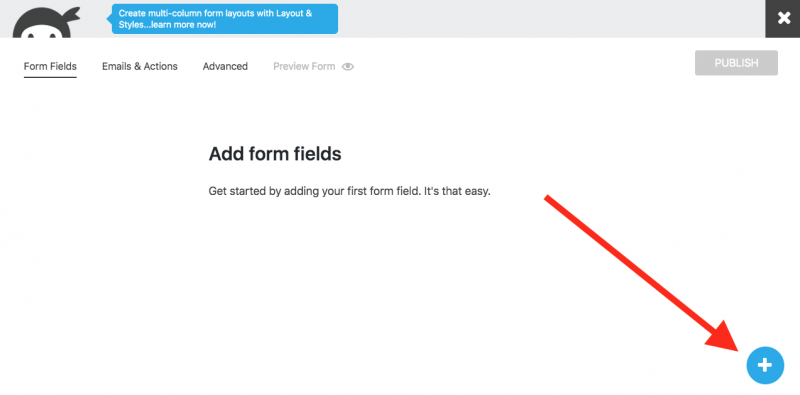
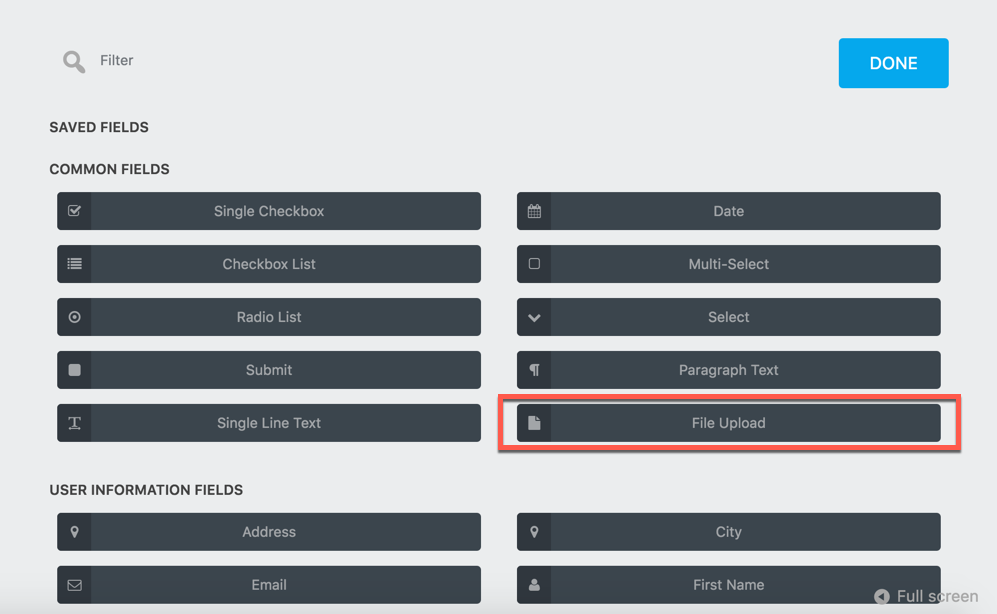
A File Uploads field can be added to the form by clicking on the Add Field Button on the bottom right, then choosing the File Upload field from the list.
Configuring your File Upload field
Click on the File Upload field to open its settings window.

General Settings
Label
The name of the field as displayed to your users.
Required Field
If enabled, this field must be completed before the form can be submitted.
Save to Server
Enabled by default, this option will save an uploaded file to your server when the form is submitted.
Rename Uploaded File
If you want the file to retain the name your user gave it, leave this blank. If you prefer your own naming convention, you can enter it here using the merge tag button.

There is a {file:extension} merge tag, but that doesn’t have to be added to the end of the setting as it will be added automatically.
The {file:name} and {file:extension} merge tags are only used the field settings and can’t be used in actions or other places. You can also create directories using / in the name.
The old style “shortcodes” are still supported for renaming and can be mixed with merge tags. These shortcodes can be found in the expandable section immediately below:
[su_accordion]
[su_spoiler title=”Renaming Conventions” style=”fancy”]
%filename% – The file’s original filename, with any special characters removed.
%formtitle% – The title of the current form, with any special characters removed.
%username% – The WordPress username for the user, if they are logged in.
%userid% – The WordPress ID (int) for the user, if they are logged in.
%displayname% – The WordPress displayname for the user, if they are logged in.
%lastname% – The WordPress lastname for the user, if they are logged in.
%firstname% – The WordPress firstname for the user, if they are logged in.
%date% – Today’s date in yyyy-mm-dd format.
%month% – Today’s month in mm format.
%day% – Today’s day in dd format.
%year% – Today’s year in yyyy format.
[/su_spoiler]
[/su_accordion]
Save to Media Library
If this setting is enabled, the File Upload will be saved to the server’s Media Library.
You can retrieve data about the attachment created in the media library using the following merge tags:
{field:my_field_key:attachment_id} – the ID of the attachment
{field:my_field_key:attachment_url} – the URL of the attachment
{field:my_field_key:attachment_embed} – an HTML image of the attachment
Restrictions Settings
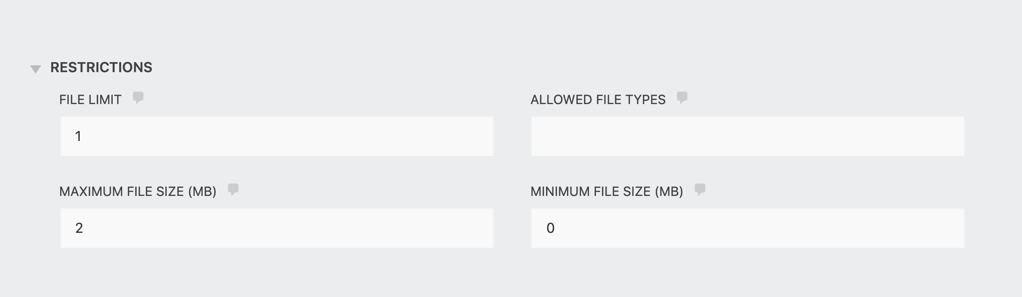
File Limit
Use this option to adjust the number of files that be uploaded from this File Upload field.
Maximum File Size
Set the maximum size of the file that can be uploaded here. This setting defaults to MB. Your server also likely has a maximum file size limit, so if you set something here and users still cannot upload files of that size, contact your host to have the server file size limit increased.
Minimum File Size
Set the minimum size of the file that can be uploaded here. This setting defaults to MB
Allowed File Types
This setting creates a allowlist of the types of files that can be uploaded by file extension (i.e. .pdf, .jpg, .png, .xls, etc). With data entered into this setting, users will be able to upload files of that type only.
Display Settings

Description
Any text entered here will appear between the label and the field.
Select File Button Text
By default, the text that appears on the File Uploads button when viewing the form will read “Select Files”. That can be changed to whatever you like here.
[su_accordion]
[su_spoiler title=”Show Advanced Features” style=”fancy”]
To see these features, you will need to enable Developer Mode in Ninja Forms’ settings.
Display Settings
Custom Class Names
- Container: Text entered here applies a custom HTML class to this field’s wrapper
- Element: Text entered here applies a custom HTML class to this field’s element
Help Text
Entering text here will display an informational icon next to the field label. When a user hovers over it, a small window will appear containing this text.
Advanced Settings
Label Position
Changes the orientation of the field label relative to the field element (above, below, left, right, hidden)
Administration Settings
Field Key
A unique programmatic key that can be used to identify and target your field for custom development. One is generated for each field automatically, and this is what you see pre-populated in the setting. It can be changed, though doing so will not update it in anything you’ve already written.
[/su_spoiler]
[/su_accordion]
Attaching an uploaded file to an email
This can be accomplished in two ways, the first method via merge tag, which will then create a link to the file(s) uploaded in the received email.
Sending a download link with the email
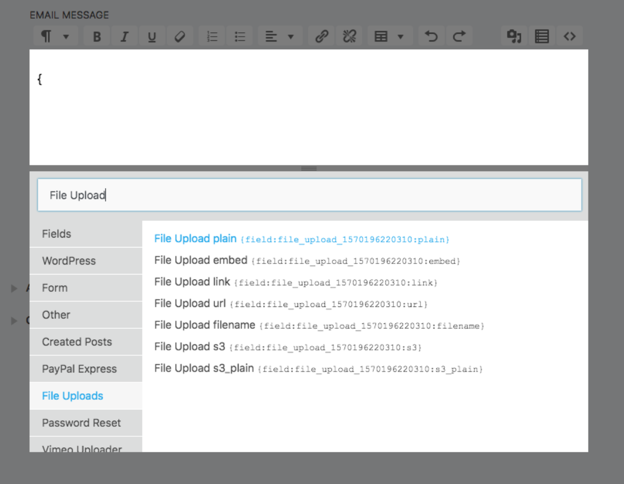
- From the Emails and Actions tab, edit the email action by clicking on the action’s gear symbol. From here, click the merge tag button located in the Email Message line, shown below.
 2. Add in the File Uploads merge tag to the Email Message body by simply clicking on it. Should your list show many merge tags, and you have trouble locating the correct tag, take advantage of the merge tag search bar and type File Uploads to locate the appropriate tag.
Attaching the file(s) to the email
The second method will attach the file(s) itself to the email itself.
- From the Emails and Actions tab, edit the email action by clicking on the action’s gear symbol.
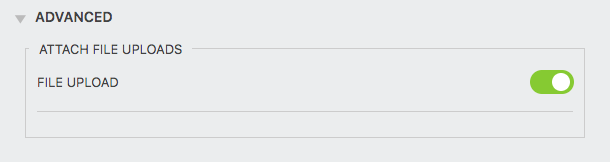
- From the pull out drawer, scroll down to the Advanced tab and click to drop down.
- Then activate (click) the Attach File Uploads toggle.
Saving uploaded files to Dropbox, Google Drive, or Amazon S3
This process requires 2 steps: 1) adjusting plugin settings and 2) adjusting form settings
1. Set up your plugin settings to send uploaded files to an external service
[su_accordion]
[su_spoiler title=”Connecting Ninja Forms to Dropbox” style=”fancy”]
To connect Ninja Forms to Dropbox, go to Ninja Forms > File Uploads > External Settings tab and click on the Connect button
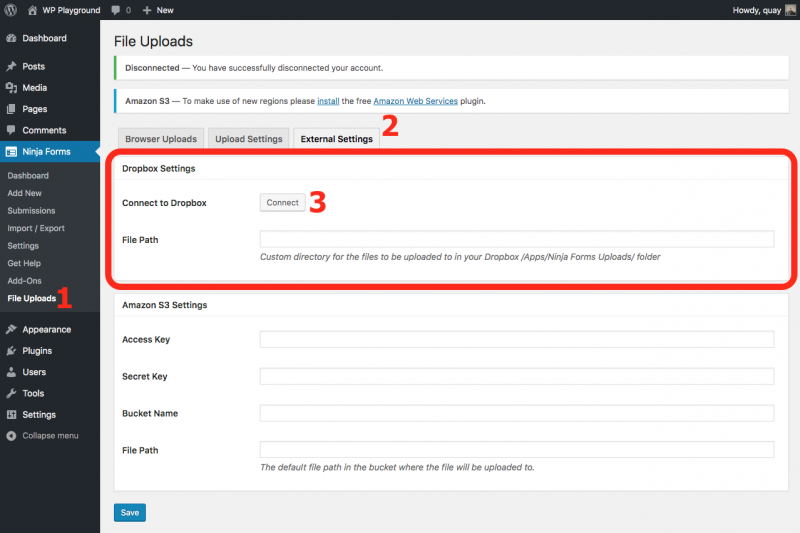
Dropbox will create a default directory of Apps/NinjaFormsUploads within your Dropbox account. While this cannot be changed, you can use the File Path setting here to define a custom directory within that file path for this upload field.
[/su_spoiler]
[su_spoiler title=”Connecting Ninja Forms to Amazon S3″ style=”fancy”]

- Open the IAM console within your Amazon S3 account
- In the navigation pane, choose Users. Then choose your IAM user name.
- Choose the Security Credentials tab and then choose Create Access Key.
- To retrieve your Access Key and Secret Key, please follow the steps described in Amazon’s Managing access keys for IAM users documentation.
- Go to Ninja Forms > File Uploads > External Settings tab and enter your Access Key ID and Secret Access Key
- Alternatively you can define your Access Key ID and Secret Access Key as constants in wp-config.php:
define( 'NF_FU_AMAZON_S3_ACCESS_KEY', 'xxxxxxxxxxxxxx' );

define( 'NF_FU_AMAZON_S3_SECRET_KEY', 'xxxxxxxxxxxxxxxxxxxxxxxxxxxx' );
- Alternatively you can define your Access Key ID and Secret Access Key as constants in wp-config.php:
- Paste the name of the destination Bucket into the bucket setting. This value must match exactly the name of the Bucket in your S3 account. For questions about Buckets in S3, please see Amazon’s Creating, configuring, and working with Amazon S3 buckets documentation.
- If your bucket is set as private you will need to add this code snippet to an mu-plugin file, eg. wp-content/mu-plugins/ninja-forms.php (the mu-plugin directory might need to be created if it doesn’t exist):
<?php

add_filter( 'ninja_forms_uploads_s3_acl', function () {

return NF_FU_External_Services_S3_Service::ACL_PRIVATE;

} );
- If your bucket is set as private you will need to add this code snippet to an mu-plugin file, eg. wp-content/mu-plugins/ninja-forms.php (the mu-plugin directory might need to be created if it doesn’t exist):
- Save your settings before exiting the page.
[/su_spoiler]
[su_spoiler title=”Connecting Ninja Forms to Google Drive” style=”fancy”]
To connect Ninja Forms to Google Drive, go to Ninja Forms > File Uploads > External Settings tab and click on the Connect button in the ‘Google Drive Settings’ box.
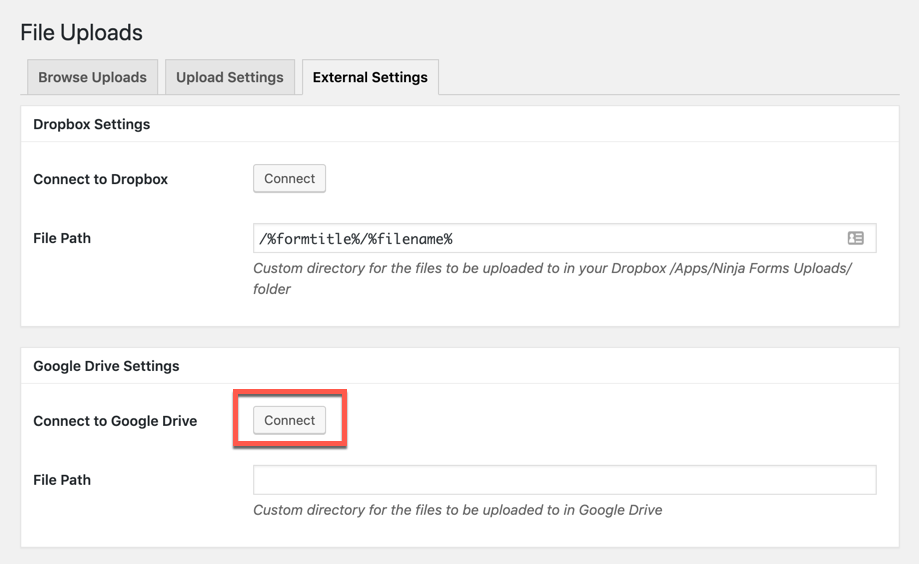
Name the folder you want your file uploads to be stored in using the File Path setting. Whatever you type here will be the name of the folder in Drive. If you leave this setting blank, files will go straight to your general My Drive area and will not be placed in a folder.
[/su_spoiler]
[/su_accordion]
2. Set up your form to send uploaded files to an external service
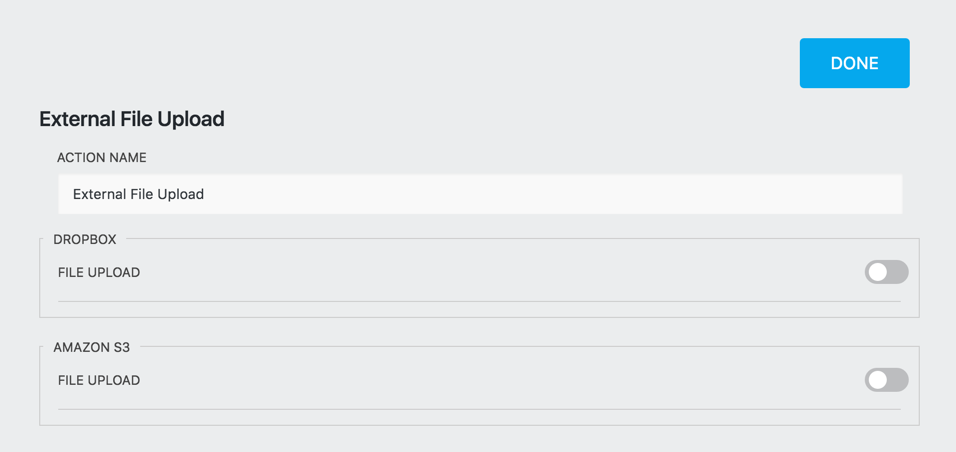
Now that you have your plugin configured to send to either Dropbox or Amazon S3 (step 1), you need to add and configure an External File Upload action on the form itself. Open your form and navigate to the Emails & Actions tab, then click the blue circle/+ in the bottom right corner to add a new action.

Under the External File Upload Action, you can choose the service you would like the files from your form to save to.
File Uploads General Settings
Access these settings in your WordPress dashboard under Ninja Forms > File Uploads.
Browser Uploads
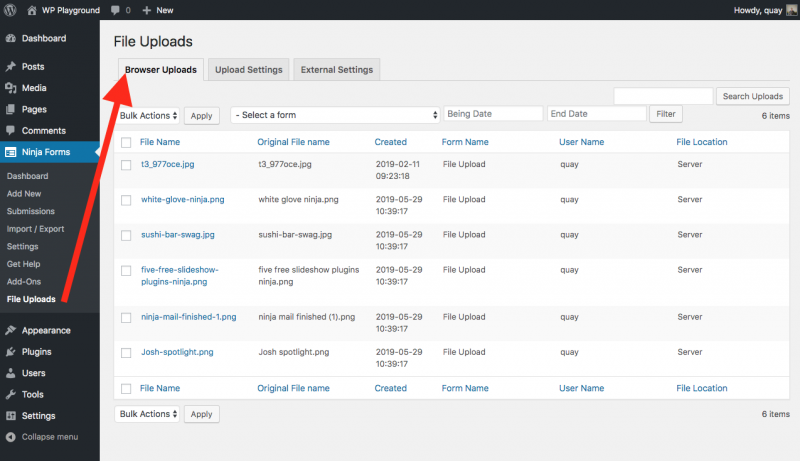
This tab allows you to view or delete all uploaded files that have been saved to your server. You can sort by form or by date.
Upload Settings

- Max File Size (in MB) – The Max File Upload size allowed per form.
- File upload error message – The Error Message that the user receives when the Max File Size is met.
- Custom Directory – Is used to create dynamic directories.
If you migrate from another server and the File Uploads path is pointing to the older server location, you can deactivate then reactivate your File Uploads and Ninja Forms plugins to reset the file path.
Advanced Functionality
Please note that modifying your add-on with custom code is outside the scope of support that we are able to provide. However, this section provides solutions to highly specific use cases of File Uploads that may come in handy if you find yourself needing them!
Are there any performance hits that your website will take when uploading large files?
That means hosting’s PHP limits (upload_max_filesize, post_max_size), server timeouts, and internet upload speed all still matter. If those are set high enough and internet connection is stable, you shouldn’t run into issues.
Recommended Settings for Large Files:
- upload_max_filesize = 512M
- post_max_size = 512M
- max_execution_time = 300
- memory_limit = 512M
Sending a direct link to the public URL of a file uploaded to External Services
To enable a direct link to the public URL for the uploaded file on Dropbox, Google Drive, or Amazon S3, turn on ‘Use Public URL’ setting in Ninja Forms > File Uploads > External Settings

Allowing file types in File Uploads that are not normally allowed by WordPress
For security purposes, File Uploads only allows the upload of file types that WordPress allows. However, this list of file types can be amended with the 'ninja_forms_upload_mime_types_whitelist' filter.
[su_tabs][su_tab title=”Allow specific file extensions” disabled=”no” anchor=”” url=”” target=”blank”]
Add to functions.php
add_filter( 'ninja_forms_upload_mime_types_whitelist', 'my_ninja_forms_upload_mime_types_whitelist' );
function my_ninja_forms_upload_mime_types_whitelist( $types ) {
//Add extensions in the following format below: $types['extension'] = 'mime type';

$types['abc'] = 'application/octet-stream';
$types['xyz'] = 'application/octet-stream';
return $types;
}
[/su_tab]
[su_tab title=”Allow all file extensions” disabled=”no” anchor=”” url=”” target=”blank” class=””]
Include:
add_filter( 'ninja_forms_upload_check_mime_types_whitelist', '__return_false' );[/su_tab]
[/su_tabs]
Known Issues
Multibyte
If you require multibyte support but do not have the PHP multibyte (mbstring) extension installed on your host, you may run into an error that says:
Fatal error: Uncaught Error: Call to undefined function NF_FU_VENDOR\mb_check_encoding()(or some other PHP function starting with `mb_`).
If this happens, please ask your hosting company to enable the PHP multibyte (mbstring) extension on your account and this will clear up this issue for you.
Our plugins do not use the multibyte extension at all; however, the libraries we use to connect to Google, Amazon, and Dropbox have a backup solution for servers without the extension. WordPress also has its own backup solution. These two conflict and that conflict produces the error. By using the standard PHP extension on your site that requires it, you will avoid this conflict completely and use the most up-to-date functionality.
[su_divider top=”no” divider_color=”#ccc” size=”8″ margin=”50″]
[su_box title=”File Upload Add-on Tutorials!” style=”noise” box_color=”#eceff7″ title_color=”#EC494D” radius=”8″]
Adding the File Upload Field Additional File Types Uploading to DropboxUploading to Google Drive Uploading FilesCloud IntegrationAccepting Resumes
[/su_box]