To view and download an invoice for any purchase, log into your NinjaForms.com account and:
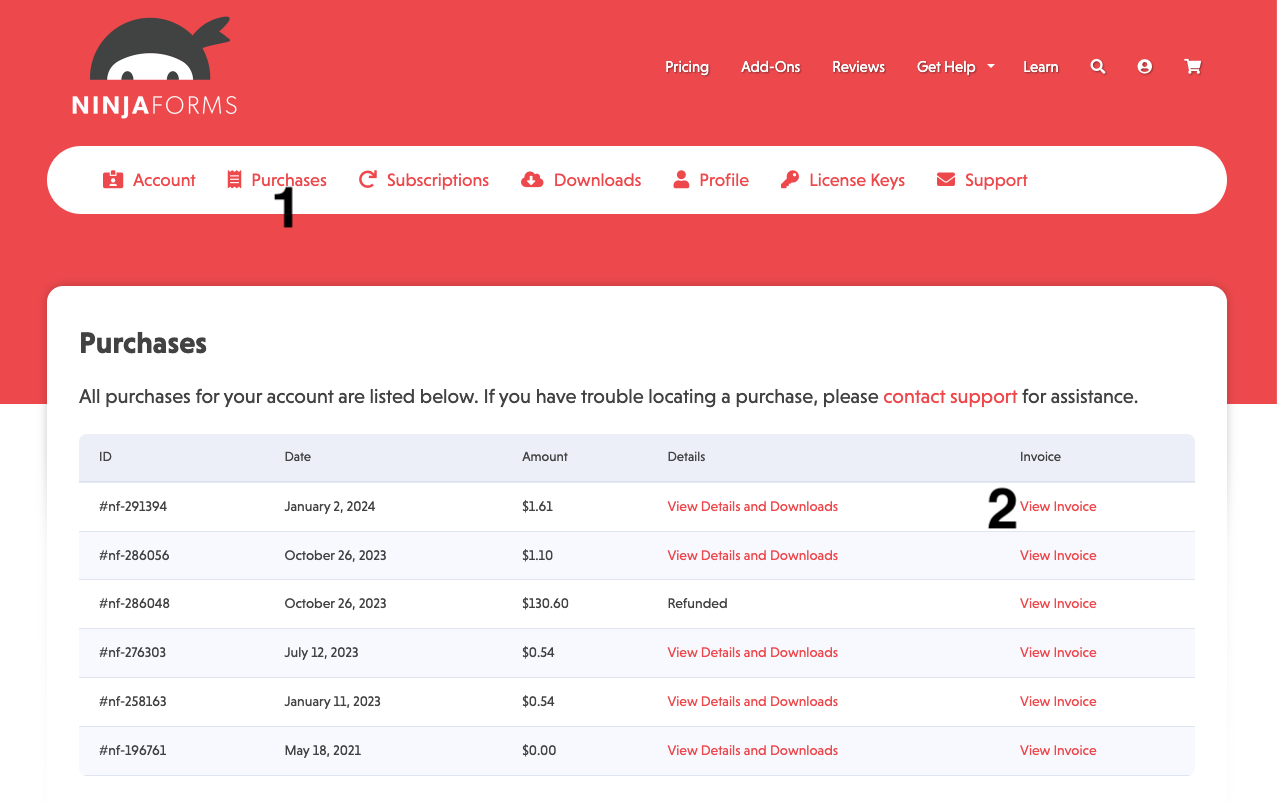
- Click on the Purchases tab on your account page
- Locate the purchase you wish to view an invoice for, and to the right of that purchase click View Invoice
Invoices for any purchase will include:
- Payment ID / Order number
- Purchase date
- Our company name and address
- The name and address you provided at purchase
- The Product(s) purchased
- Subtotal
- Any discount applied
- Tax
- Total
- Payment status
You can choose to print your invoice from this screen, or download it as a PDF. Your details can be edited as needed on the invoice screen via the Update button at the top right of the digital invoice.
How to Add Your Company Name & Tax/VAT Details
This can easily be done!
Once you have opened an invoice to view. Click ‘Update’ on the invoice.

You will then be presented with the various options to update.
This is where you can add, update, remove Company Name, Tax/VAT information, and more.