Export Your Ninja Forms Submission to an Excel Spreadsheet

You know you can always export your Ninja Forms submissions into a CSV for free. But if we’re being honest, CSV can sometimes be a lot to handle. What we really want and need is a simple Excel spreadsheet. That’s why in this article, we’ll cover how to export your Ninja Forms to an Excel spreadsheet.
How to get an Excel spreadsheet of your Ninja Forms submissions
Make sure you have the Excel Export add-on to see what’s going to be described next. Please note that the “ZipArchive” PHP module is required for this add-on to run. Please contact your host to ensure compatibility. You’ll also need a form that has some submissions already.
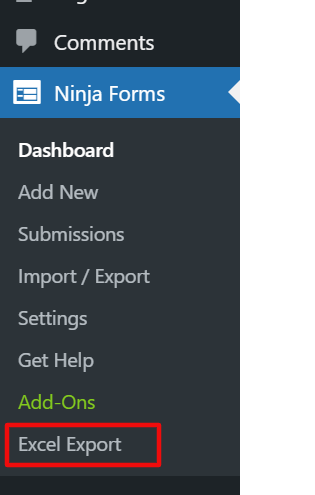
Go to your WordPress dashboard, then to the Ninja Forms menu > Excel Export submenu.
There, you’ll see the Excel Export screen. You can select the form that you want to export, filter the submissions and the fields you want to include in the export, and select your Excel file type (.XLSX or .XLS).

For a quick and simple export of all your submissions, just select the form you want to export, choose the file type you want, and click ‘Download Excel file’. That’s it!
What if I don’t want to export all the submissions?
If you deal with thousands of submissions, you may don’t want to export all of them. This can be done by filtering your submissions, adding one or more conditions to the filter.
You can filter your submissions by their submission date or by the data in the form fields.
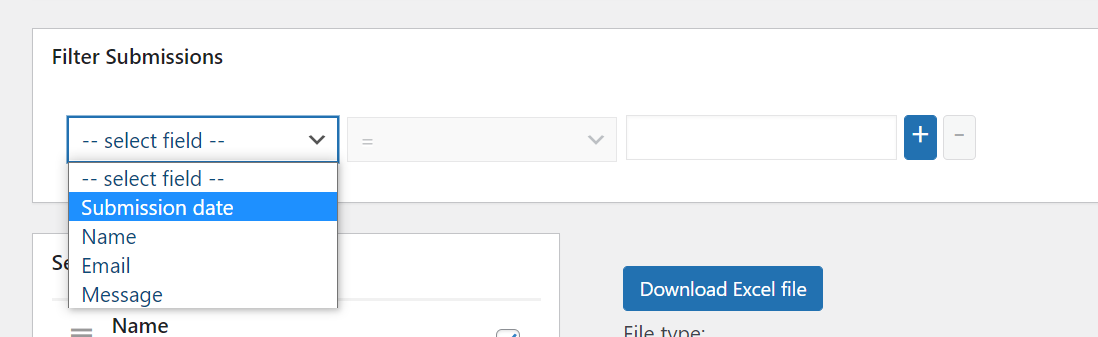
There’s a lot that you can do with these conditions. You have =, !=, >=, >, <=, <, CONTAINS, LIKE, IS EMPTY, NOT EMPTY. You can add one or more conditions, and you can even combine them!

For example, if you want to generate a weekly report for the week that has passed, then you need to add two conditions to the filter. One is ‘Submission date’ >= ‘2021-03-15’, and the other one is ‘Submission date’ <= ‘2021-03-19’.
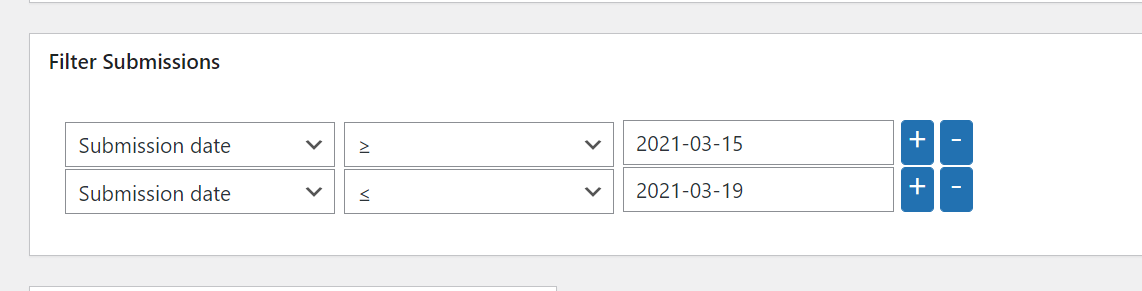
Or, you can also export only the submissions that you get on a specific day or in a specific month.
Selecting the fields you want to export
The filtering doesn’t end there. If some of your fields are confidential and you only want to export some of them, you can do that also! Just check/uncheck the fields listed there.

Another customization that you can do is setting the order of your fields/your Excel columns. You only need to drag the fields in the order that you want, and that’s how you’ll get the order of the columns in your Excel export.
It’s easy to export your form submissions to Excel!
Did you get all the steps? Now you can process your form submissions easily as a spreadsheet on Excel. No more complex CSVs 😉
If you want to do it on other spreadsheet applications instead, check out our guides on how to connect Ninja Forms to Google Sheets and Airtable.
Let us know what else you want to do with Ninja Forms in the comments section below!


How can I export Ninja forms Submissions that container repeater fields, without “Array; Array; Array” appearing ?
I want data within the limited range but I am getting all data even i filtered by submission date .
eg: nearly all 3 month data are getting. I need 1 week data or 1 day data. please can you advice me how to fixed.
Hello,
To filter submission data via the Excel Export add-on ( Ninja Forms > Excel Export ) choose the form, create the filter: Submission Date > conditional > choose the date via date picker. If that doesn’t work, please reach out to our customer support team, so we can assist you with your question: https://b02c0f4e-a0f9-475a-b182-151a505453f7.cv02.conves.io/contact/ in more detail.
What can be wrong of the only result of “download all” is “download error”
Hi Peter,
Please reach out to our customer support team for further support on this matter: https://b02c0f4e-a0f9-475a-b182-151a505453f7.cv02.conves.io/contact/
Hello Ninja Team,
I am using ninja excel export pro version. I have one problem.
I wana data within the limited date range but I am getting all data nealry 3 months even I filtered by submission data.
I want filter for 1 week or 1 month . Please can anyone advice me how to solve this problem.
Hello MTZ,
Please reach out to our customer support team so that we can further assist you: https://b02c0f4e-a0f9-475a-b182-151a505453f7.cv02.conves.io/contact?
How can I export all Ninja forms Submissions?
Now i can export only 200 rows.
Hello Kristijan,
Please reach out to our customer support team so that we can further assist you: https://b02c0f4e-a0f9-475a-b182-151a505453f7.cv02.conves.io/contact
When I try to export my form, I do not see the “Excel” option. When I click the “Download all Submissions” button, I get the error “Submissions download failed”. When I try to choose “Export” from the bulk options, it hangs forever. Please help!
Hello Jon Stoper,
Please reach out to our customer support team so that we can further assist you: https://b02c0f4e-a0f9-475a-b182-151a505453f7.cv02.conves.io/contact with the “Submissions download failed error”.
We use the addon in a multisite environment. Only super admins see the “Excel Export” menu item. Can we also make the Excel export available for normal site admins?
Hello Lothar,
To enable the Excel Export menu item to Admins, make sure the Excel Export add-on is activated on each subsite individually. If you have done that and it is still not visible, please reach out to our customer support team so that we can further assist you: https://b02c0f4e-a0f9-475a-b182-151a505453f7.cv02.conves.io/contact.